New to Office2000
Windows2000 and Millennium Places bar information here
Office XP users information here
If you would like to add your own folder to the Places Bar (seen in the File/Open and File/Save or SaveAs dialogs), you can do this by editing the Windows Registry. You will need to remove (rather "hide") one of the existing folders for each custom folder you want to add.

When done, export the registry keys for fast restoration should you decide to change some locations or reinstall Office. Edit the *.reg file in notepad and double click (or right click and choose Merge).
Note: These examples were exported from my registry, if creating the keys by editing, you need to use a Path with one slash "c:\this folder", not the double slash in my examples. If creating a text file to import, you would use double slashes.
There are 5 folder buttons by default on the Places Bar. (If you would like 10, see here) They are located at:
HKEY_CURRENT_USER\Software\Microsoft\Office\9.0\Common\Open Find\Place
History (Recent key)
My Documents (MyDocuments key),
Desktop (Desktop key),
Favorites (Favorites key)
Web Folders (Publishing key).
First, hide one of the Standard Places, by adding the SHOW Value with default DWORD value of 0… to the following Key: (In this example key, I added the Show value to the Recent key-which hides the History Folder)
HKEY_CURRENT_USER\Software\Microsoft\Office\9.0\Common\Open Find\Places\StandardPlaces\Recent
"Show"=dword:00000000
Then add a Place(n) Key to the UserDefinedPlaces-Name and Path values are needed.
HKEY_CURRENT_USER\Software\Microsoft\Office\9.0\Common\Open Find\Places\UserDefinedPlaces\place1
"Name"="C Drive"
"Path"="c:\"
Need more than 5 places? Change the icons to a smaller size and you can have 10. Use "ItemSize"=dword:00000000, in the places key:
[HKEY_CURRENT_USER\Software\Microsoft\Office\9.0\Common\Open Find\Places
"ItemSize"=dword:00000000
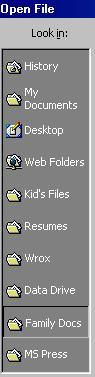
Since I've hidden one of the default places:
HKEY_CURRENT_USER\Software\Microsoft\Office\9.0\Common\Open Find\Places\StandardPlacesFavorites
"show"=dword:00000000
I can now have 6 custom locations, named place1 through place 6.
HKEY_CURRENT_USER\Software\Microsoft\Office\9.0\Common\Open Find\Places\UserDefinedPlaces\place1
"Name"="Kid's Files"
"Path"="G:\FamilyKid's Files"
HKEY_CURRENT_USER\Software\Microsoft\Office\9.0\Common\Open Find\Places\UserDefinedPlaces\place2
"Name"="Resumes"
"Path"="D:\DataResumes"
HKEY_CURRENT_USER\Software\Microsoft\Office\9.0\Common\Open Find\Places\UserDefinedPlaces\place3
"Name"="Wrox"
"Path"="E:\Wrox"
HKEY_CURRENT_USER\Software\Microsoft\Office\9.0\Common\Open Find\Places\UserDefinedPlaces\place4
"Name"="Data Drive"
"Path"="D:\"
HKEY_CURRENT_USER\Software\Microsoft\Office\9.0\Common\Open Find\Places\UserDefinedPlaces\place5
"Name"="Family Docs"
"Path"="G:\Personal"
HKEY_CURRENT_USER\Software\Microsoft\Office\9.0\Common\Open Find\Places\UserDefinedPlaces\place6
"Name"="MS Press"
"Path"="E:\MSPress"
A pfecret reply! Thanks for taking the trouble.