@Poremsky.com

Tips & Tricks for Windows, Office, and Whatever

  • Home
  • Windows
  • Office
  • Web Design
  • WordPress
  • Internet Explorer

Add login domain to Active Directory

Published on July 8, 2011

Adding another domain (UPN suffixes) to your active directory is simple:

Start the Active Directory Domain and Trusts MMC then right-click on Active Directory Domain and Trusts in the left pane (*not* on your domain name). Choose Properties and type in the UPN suffix (@domain.com) you want to use.
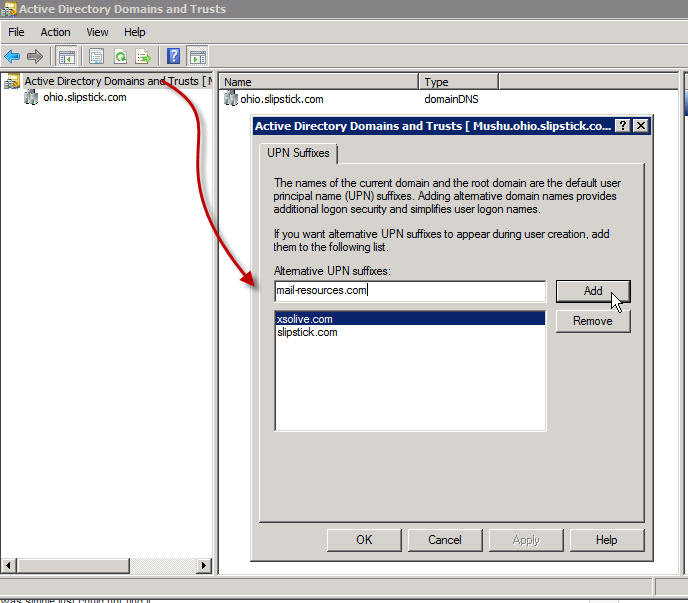
Add logon domain (UPN)

When you are creating a new user, select the UPN from the login domain dropdown.

Assigning a login domain to a users

Share this:

  • Click to share on Facebook (Opens in new window) Facebook
  • Click to share on LinkedIn (Opens in new window) LinkedIn
  • Click to share on X (Opens in new window) X
  • Click to print (Opens in new window) Print
Subscribe
Notify of
0 Comments
Newest
Oldest Most Voted
Inline Feedbacks
View all comments

Recent Posts

  • Use a JavaScript bookmarklet to open an archive for a webpage
  • How to fix records that are all in one column
  • Change Password or Pin Complexity after removing from Intune
  • Server drafts location is not valid error message
  • What is the Brown File Box Icon on Files in Windows 11?

Recent Comments

  • FUAD on Remove Office Licenses from Windows
  • Brian DuBridge on Add the Recent Items Folder to Windows 10 Quick Access
  • Renee Moodie on Remove Office Licenses from Windows
  • John P on Remove Office Licenses from Windows
  • Puja on Remove Office Licenses from Windows
Privacy & Cookies: This site uses cookies. By continuing to use this website, you agree to their use.

To find out more, including how to control cookies, see here: Cookie Policy

© 2025 · @Poremsky.com

wpDiscuz
Go to mobile version